StudyCircle User Guide
StudyCircle (SC) is a desktop app for NUS computing students that helps you keep track of your project groups. It helps you manage your contacts, sort them into groups, and track events within those groups.
SC is optimised for use via a Command Line Interface (CLI) while still allowing you to see your changes in real time through a Graphical User Interface (GUI). If you can type fast, SC can get your contact and group management tasks done faster than traditional GUI-only apps.
Quick start
Ensure you have Java
17or above installed in your computer.
Mac users: Ensure you have the precise JDK version prescribed here.Download the latest
.jarfile from here.Copy the file to the folder you want to use as the home folder for your StudyCircle.
Open a command terminal,
cdinto the folder you put the jar file in, and use thejava -jar StudyCircle.jarcommand to run the application.
A GUI similar to the below should appear in a few seconds. The main elements of the interface have been highlighted in the screenshot. Note how the app contains some sample data to help you get oriented.
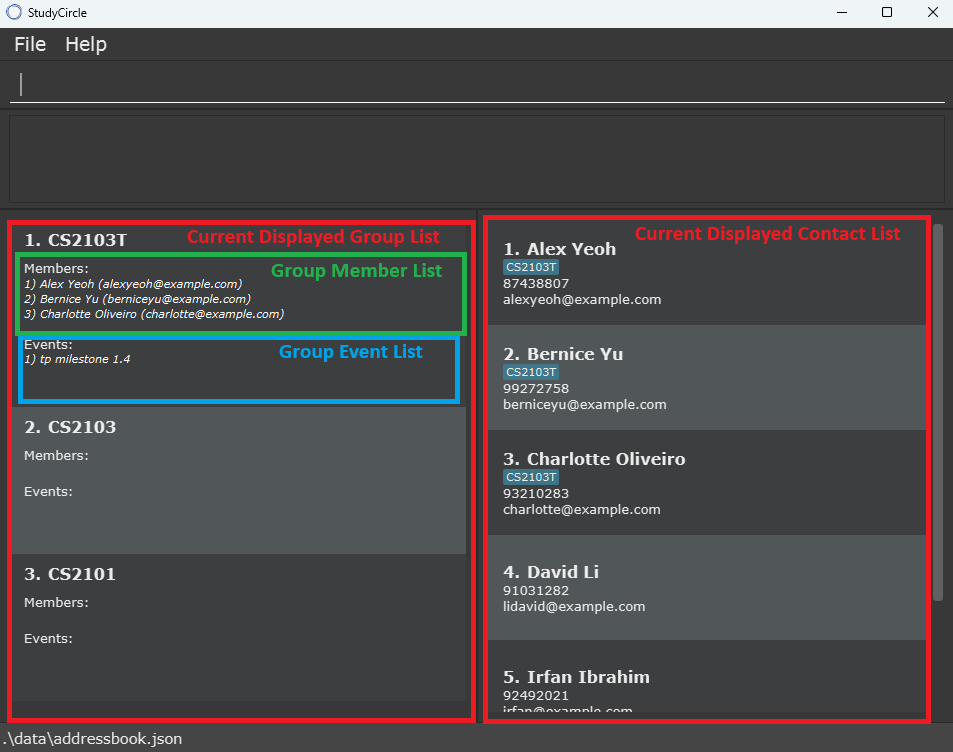
Type the command in the command box and press Enter to execute it. e.g. typing
helpand pressing Enter will open the help window.
Some example commands you can try:list-contacts: Lists all contacts.add-contact n/John Doe p/98765432 e/e1399155: Adds a contact namedJohn Doeto the contact list.delete-contact 3: Deletes the 3rd contact shown in the current contact list.clear: Deletes all contacts and groups.exit: Exits the app.
Refer to the Features below for details of each command.
Features
Notes about the command format:
Words in
UPPER_CASEare the parameters to be supplied by the user.
e.g. inadd-contact n/NAME,NAMEis a parameter which can be used asadd-contact n/John Doe.Items in square brackets are optional.
e.gn/NAME [g/GROUP_INDEX]can be used asn/John Doe g/1or asn/John Doe.Items with
… after them can be used multiple times including zero times.
e.g.[g/GROUP_INDEX]…can be used asg/1,g/2 g/3etc.Parameters can be in any order.
e.g. if the command specifiesn/NAME p/PHONE_NUMBER,p/PHONE_NUMBER n/NAMEis also acceptable.Extraneous parameters for commands that do not take in parameters (such as
help,list-contacts,exitandclear) will be ignored.
e.g. if the command specifieshelp 123, it will be interpreted ashelp.If you are using a PDF version of this document, be careful when copying and pasting commands that span multiple lines as space characters surrounding line-breaks may be omitted when copied over to the application.
All commands are case sensitive.
e.g.list-contactsis not the same asList-Contacts
Viewing help : help
Shows a message explaining how to access the help page.

Format: help
Managing contacts
Adding a contact: add-contact
Adds a contact to the StudyCircle contact list.
Format: add-contact n/NAME p/PHONE_NUMBER e/EMAIL [g/GROUP_INDEX]…
NAME Constraints:
- case-insensitive (The system displays names in their original case but treats names like “tom” and “TOM” as the same.)
- Should not be empty or contain only whitespace
- Maximum length: 50 characters
- Alphanumeric characters and spaces allowed (no consecutive spaces)
- May include 's/o' ("son of") or 'd/o' ("daughter of") between names
- Leading and trailing spaces are automatically removed.
PHONE_NUMBER Constraints:
- Must contain only digits
- Minimum 8 digits
- Maximum 15 digits
EMAIL Constraints:
- Must be a valid nus ID
- Must start with ‘e’ (case-sensitive), followed by 7 digits
- Example: e0123456
- The domain ‘@u.nus.edu’ is added automatically — you do not need to include it
GROUP_INDEX Constraints:
- Should match an index in the currently displayed group list
Duplicate handling: Each contact must have a unique NUS email, while other fields can have duplicates.
Tip: A contact can be added to multiple groups at once by specifying multiple g/ prefixes and GROUP_INDEX should not be blank
Examples:
add-contact n/John Doe p/98765432 e/e1234567adds a contact with name: John Doe, phone: 98765432, email: e1234567@u.nus.edu to the contact list.add-contact n/Betsy Crowe e/e1232567 p/12345678 g/1 g/2adds a contact with name: Betsy Crowe, phone: 12345678, email: e1232567@u.nus.edu to both the contact list and groups 1, 2.
Editing a contact : edit-contact
Edits the details of the specified contact. Only the specified fields will be overwritten.
Format: edit-contact CONTACT_INDEX [n/NAME] [p/PHONE] [e/EMAIL] [g/GROUP_INDEX]...
CONTACT_INDEX Constraints:
- Should match an index in the currently displayed contact list.
Other parameter constraints are the same as in add-contact.
Caution: Using g/ prefix will replace the contact’s existing groups instead of adding to them.
Caution: Using g/ with blank GROUP_INDEX removes the contact from all groups.
(Example: edit-contact 1 g/ removes contact 1 from all groups.)
Examples:
edit-contact 1 n/John p/12345678 e/e1234567 g/1 g/2edits the 1st contact in the current displayed contact list to name John, phone 12345678, email e1234567@u.nus.edu and adds John to group 1 and 2.
Deleting a contact : delete-contact
Deletes the specified contact from the StudyCircle contact list.
Format: delete-contact CONTACT_INDEX
CONTACT_INDEX Constraints:
- Should match an index in the currently displayed contact list.
Examples:
delete-contact 1deletes the 1st contact in the current displayed contact list.
Listing all contacts : list-contacts
Shows a list of all contacts with their name, phone number, email and groups (if any) in the current displayed contact list.
Format: list-contacts
Finding a contact : find-contact
Finds all contacts whose names contain any of the specified keywords and displays them as a list with index numbers.
Format: find-contact KEYWORD [MORE_KEYWORDS]…
KEYWORDis case-insensitive
e.g. finding withBOBandbobwill return the same result- One or more keyword can be entered, returning all the contacts which contain either of the keywords
e.g.find-contact Bob Alicewill return all contacts with eitherBoborAlicein their names - The search performs partial matches — for example,
find-contact annwill match names likeAnna,Annette, orJoanne.
Examples:
find-contact robwill show the contact list with all people whose name containsrobfind-contact Aaron Darrenwill show the contact list with all people whose name contains eitheraaronordarrenfind-contact Aa Dawill matchaaronanddarren
Managing Groups
Adding a group : add-group
Adds a new group to the StudyCircle group list.
Format: add-group n/GROUP_NAME
GROUP_NAME Constraints:
- May contain alphanumeric characters, spaces, and the following symbols:
-,_,(,) - Must not be blank
- Maximum length: 50 characters
Duplicate handling: Each group name must be unique. Names are case-insensitive (e.g., “Team” and “team” are treated as duplicate names).
Edit a group : edit-group
Edit the specified group from the StudyCircle group list.
Format: edit-group GROUP_INDEX n/GROUP_NAME
GROUP_INDEX Constraints:
- Should match an index in the currently displayed group list.
Other parameter constraints are the same as in add-group.
Deleting a group : delete-group
Deletes the specified group from the StudyCircle group list.
Format: delete-group GROUP_INDEX
GROUP INDEX Constraints:
- Should match an index in the currently displayed group list.
Examples:
delete-group 1deletes the 1st group in the current displayed group list.
Examples:
edit-group 1 n/cs2103 team 1edits the 1st group in the current displayed group list to have the namecs2103 team 1.
Listing all groups : list-groups
Shows a list of all groups with their members and events in the current displayed group list.
Format: list-groups
Finding a group : find-group
Finds all groups whose names contain any of the specified keywords (case-insensitive) and displays them as a list with index numbers.
Format: find-group KEYWORD [MORE_KEYWORDS]…
KEYWORDis case-insensitive
e.g. finding withtpandTPwill return the same result- One or more keyword can be entered, returning all the groups which contain either of the keywords
e.g.find-group tp CS2101will return all groups with eithertporCS2101in their names - The search performs partial matches — for example,
find-group tpwill match names liketp2103,rentport, orcs2103tp.
Examples:
find-group CA2will show the group list with all groups whose name containsCA2find-group CS 210will show the group list with all groups whose name contains eitherCSor210find-group ab3 2101will match groups namedAB3orcs2101
Managing Group Membership
Adding a member to a group : add-member
Adds the specified contacts to the specified group.
Format: add-member GROUP_INDEX c/CONTACT_INDEX [c/CONTACT_INDEX]…
GROUP_INDEX Constraints:
- Should match an index in the currently displayed group list.
CONTACT_INDEX Constraints:
- Should match an index in the currently displayed contact list.
Tip: You can add more than one contact to a group by specifying each extra contact with a c/ prefix, e.g., c/1 c/2 c/3.
Caution: Adding members to multiple groups at once is not supported.
Examples:
add-member 1 c/2adds the 2nd contact to the 1st group.add-member 1 c/1 c/2adds the 1st and 2nd contact to the 1st group
Deleting a member from a group : delete-member
Deletes the specified contacts from the specified group.
Format: delete-member GROUP_INDEX c/CONTACT_INDEX [c/CONTACT_INDEX]…
GROUP_INDEX Constraints:
- Should match an index in the currently displayed group list.
CONTACT_INDEX Constraints:
- Should match an index in the currently displayed contact list.
Examples:
delete-member 1 c/2deletes the 2nd contact from the 1st group.delete-member 1 c/1 c/2deletes the 1st and 2nd contacts from the 1st group
Managing Events
Adding an event to a group : add-event
Adds an event to the specified group.
Format: add-event GROUP_INDEX d/DESCRIPTION
GROUP_INDEX Constraints:
- Should match an index in the currently displayed group list.
DESCRIPTION Constraints:
- Should not be blank.
Examples:
add-event 1 d/Report due 31/10 14:00adds the eventReport due 31/10 14:00to the 1st group.
Editing an event in a group : edit-event
Edits an event description in the specified group.
Format: edit-event GROUP_INDEX e/EVENT_INDEX d/EVENT_DESCRIPTION
GROUP_INDEX Constraints:
- Should match an index in the currently displayed group list.
EVENT_INDEX Constraints:
- Should match an index in the event list of the group specified by
GROUP_INDEX.
DESCRIPTION Constraints:
- Should not be blank.
Examples:
edit-event 1 e/2 d/MVP Feature Specificationsedits the 2nd event in the 1st group toMVP Feature Specifications
Deleting an event from a group : delete-event
Deletes the specified event from the specified group.
Format: delete-event GROUP_INDEX e/EVENT_INDEX
GROUP_INDEX Constraints:
- Should match an index in the currently displayed group list.
EVENT_INDEX Constraints:
- Should match an index in the event list of the group specified by
GROUP_INDEX.
Examples:
delete-event 1 e/2deletes the 2nd event from the 1st group.
Managing Links
Setting repository link for a group : set-repo
Set repository link for the specified group.
Format: set-repo GROUP_INDEX r/REPOSITORY_LINK
GROUP_INDEX Constraints:
- Should match an index in the currently displayed group list.
REPOSITORY_LINK Constraints:
- Should be a valid URL.
- Maximum length: 200 characters.
- Must not contain any whitespace.
- Protocol (optional): can be http:// or https://.
- Domain Name (required): must be valid, including a top-level domain (e.g. .com, .org).
- Path (optional): if present, must start with /.
Caution: Setting the repo link of a group will overwrite the original repo link, if it was set.
Examples:
set-repo 2 r/https://github.com/AY2526S1-CS2103T-F12-1/tpsets the repository link in 2nd group to 'https://github.com/AY2526S1-CS2103T-F12-1/tp'
Getting repository link from a group : get-repo
Retrieves the repository link of the specified group and automatically copies it to your clipboard.
Format: get-repo GROUP_INDEX
GROUP_INDEX Constraints:
- Should match an index in the currently displayed group list.
Examples:
get-repo 2will get the repository link in 2nd group and copy it to your clipboard.
Deleting a repository link from a group : delete-repo
Deletes the specified repository link from the specified group.
Format: delete-repo GROUP_INDEX
GROUP_INDEX Constraints:
- Should match an index in the currently displayed group list.
Examples:
delete-repo 1deletes repository link from the 1st group.
Group Dashboard
Showing the dashboard of a group: show-dashboard
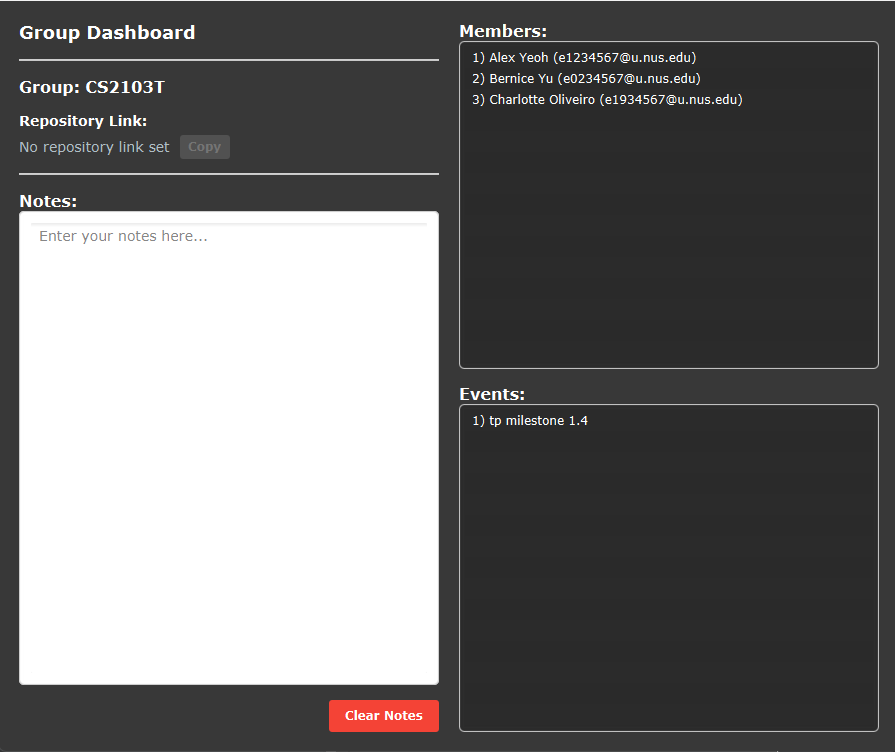
Shows the dashboard for a group which displays the group's repo link (if any), members, events and notes.
Format: show-dashboard GROUP_INDEX
GROUP_INDEX Constraints:
- Should match an index in the currently displayed group list.
Caution: While the dashboard is showing, editing that group's fields (members/events/repolink/name) will not update the
showing dashboard and will require another show-dashboard command to update those fields.
Examples:
show-dashboard 1shows the dashboard of group 1.- The dashboard shown will look like the image below
Saving notes into the dashboard of a group:
In the dashboard, there is a section with an editable white text box which allows you to save any notes to a group.
- You can navigate the notes section using your keyboard's arrow keys
- The notes section will auto-save with every keystroke
- To clear the note box, you can click the red
Clear Notesbutton
System commands
Clearing the StudyCircle contact book : clear
Clears the contact book of all groups and contacts.
Format: clear
Exiting the program : exit
Exits the program.
Format: exit
Saving the data
StudyCircle data is saved in the hard disk automatically after any command that changes the data. There is no need to save manually.
Editing the data file
StudyCircle data is saved automatically as a JSON file [JAR file location]/data/addressbook.json. Advanced users are
welcome to update data directly by editing that data file.
Caution:
If your changes to the data file makes its format invalid, StudyCircle will discard all data and start with an empty
data file at the next run. Hence, it is recommended to take a backup of the file before editing it.
Furthermore, certain edits can cause StudyCircle to behave in unexpected ways (e.g., if a value entered is outside the
acceptable range). Therefore, edit the data file only if you are confident that you can update it correctly.
FAQ
Q: How do I transfer my data to another Computer?
A: Install the app in the other computer and overwrite the empty data file it creates with the file that
contains the data of your previous StudyCircle home folder.
Known issues
- When using multiple screens, if you move the application to a secondary screen, and later switch to using only the primary screen, the GUI will open off-screen. The remedy is to delete the
preferences.jsonfile created by the application before running the application again. - When resizing the window of StudyCircle, if the window gets too small and the description of a group's event or member name is too long, it will cause the box displaying that group to stop automatically resizing. This leads to the need to use a scroll bar to scroll through that group's events/members if there are too many items in either category.
- If you minimize the Help Window and then run the help command (or use the Help menu, or the keyboard shortcut F1) again, the original Help Window will remain minimized, and no new Help Window will appear. The remedy is to manually restore the minimized Help Window.
- If an event's description is too long, it will not wrap properly in the group dashboard window, and you will need to scroll horizontally to read the full text.
Command summary
| Action | Format, Examples |
|---|---|
| Add contact | add-contact n/NAME p/PHONE_NUMBER e/EMAIL [g/GROUP_INDEX]… e.g., add-contact n/John Doe p/98765432 e/e1234567 g/1 g/2 |
| Delete contact | delete-contact CONTACT_INDEXe.g., delete-contact 3 |
| Edit contact | edit-contact CONTACT_INDEX [n/NAME] [p/PHONE] [e/EMAIL] [g/GROUP INDEX]... e.g., edit-contact 1 n/John p/12345678 e/e1234567 g/1 g/2 |
| Find contact | find-contact KEYWORD [MORE_KEYWORDS]…e.g., find-contact James Jake |
| List contacts | list-contacts |
| Add group | add-group n/NAME e.g., add-group n/2103T |
| Delete group | delete-group GROUP_INDEXe.g., delete-group 3 |
| Edit group | edit-group GROUP_INDEX n/GROUP_NAMEe.g., edit-group 1 n/cs2103 team 1 |
| Find group | find-group KEYWORD [MORE_KEYWORDS]…e.g., find-group CA1 CA2 |
| List groups | list-groups |
| Add members to a group | add-member GROUP_INDEX c/CONTACT_INDEX [c/CONTACT_INDEX]… e.g., add-member 1 c/1, add-member 1 c/1 c/2 |
| Delete members from a group | delete-member GROUP_INDEX c/CONTACT_INDEX [c/CONTACT_INDEX]… e.g., delete-member 1 c/1, delete-member 1 c/1 c/2 |
| Add an event to a group | add-event GROUP_INDEX d/DESCRIPTIONe.g., add-event 2 d/do project work |
| Delete an event from a group | delete-event GROUP_INDEX e/EVENT_INDEX e.g., delete-event 1 e/2 |
| Edit an event in a group | edit-event GROUP_INDEX e/EVENT_INDEX d/EVENT_DESCRIPTION e.g., edit-event 1 e/2 d/MVP Feature Specifications |
| Set repository link for a group | set-repo GROUP_INDEX r/REPOSITORY_LINK e.g., set-repo 2 r/https://github.com/AY2526S1-CS2103T-F12-1/tp |
| Get repository link from a group | get-repo GROUP_INDEX e.g., get-repo 2 |
| Delete a repository link from a group | delete-repo GROUP_INDEX e.g., delete-repo 1 |
| Show a group's dashboard | show-dashboard GROUP_INDEXe.g., show-dashboard 1 |
| Clear StudyCircle contacts and groups | clear |
| Exit the application | exit |
| Help | help |